The previous guides covered the individual commands: PowerShell, winget, listing programs, uninstalling and Windows updates. Now we put them together in a script: a file that runs every check in one go and saves the result in a report. The script only reads: it does not delete, install or change anything.
What it checks
| Section | What it tells you | When to worry |
|---|---|---|
| System | Windows version and build, last boot | If the PC has not restarted for weeks |
| Pending restart | Whether an update is waiting for a restart | If it stays True for days |
| Disk space | Free GB and percentage for each drive | Below 10–15% free on C: |
| Disk health | The status reported by the physical disks | Anything other than Healthy |
| Microsoft Defender | Real-time protection and definition date | Protection False or definitions days old |
| Programs | Updates available according to winget | Browsers and PDF readers should be updated at once |
| Windows updates | The most recent ones installed | If the latest is over a month old |
Step 1: create the script
- Create the folder
C:\Script. - Open Notepad, paste the text below and save it as
C:\Script\pc-check.ps1. In the save dialog choose All files as the type, or Notepad adds.txt. - If you add text with accented or non-English characters, save with UTF-8 with BOM encoding: Windows PowerShell 5.1 misreads UTF-8 files without BOM.
# pc-check.ps1 - periodic PC check (read-only)
# Guide: https://www.ciaranfi.org/en/windows-maintenance-script-powershell/

$date   = Get-Date -Format 'yyyy-MM-dd'
$report = Join-Path ([Environment]::GetFolderPath('Desktop')) "pc-check-$date.txt"
Start-Transcript -Path $report | Out-Null

Write-Host "== System ==" -ForegroundColor Cyan
$v  = Get-ItemProperty 'HKLM:\SOFTWARE\Microsoft\Windows NT\CurrentVersion'
$os = Get-CimInstance Win32_OperatingSystem
"Windows $($v.DisplayVersion), build $($v.CurrentBuild).$($v.UBR)"
"Last boot: $($os.LastBootUpTime)"

Write-Host "== Pending restart ==" -ForegroundColor Cyan
Test-Path 'HKLM:\SOFTWARE\Microsoft\Windows\CurrentVersion\WindowsUpdate\Auto Update\RebootRequired'

Write-Host "== Disk space ==" -ForegroundColor Cyan
Get-Volume | Where-Object { $_.DriveLetter -and $_.Size -gt 0 } |
  Select-Object DriveLetter, FileSystemLabel,
    @{n='FreeGB';  e={[math]::Round($_.SizeRemaining / 1GB, 1)}},
    @{n='TotalGB'; e={[math]::Round($_.Size / 1GB, 1)}},
    @{n='Free%';   e={[math]::Round(100 * $_.SizeRemaining / $_.Size)}} |
  Format-Table -AutoSize

Write-Host "== Disk health ==" -ForegroundColor Cyan
Get-PhysicalDisk | Select-Object FriendlyName, MediaType, HealthStatus, OperationalStatus |
  Format-Table -AutoSize

Write-Host "== Microsoft Defender ==" -ForegroundColor Cyan
try {
  Get-MpComputerStatus -ErrorAction Stop |
    Select-Object RealTimeProtectionEnabled, AntivirusSignatureLastUpdated, QuickScanEndTime |
    Format-List
} catch { "Defender not available (another antivirus may be active)." }

Write-Host "== Programs to update (winget) ==" -ForegroundColor Cyan
winget upgrade --accept-source-agreements

Write-Host "== Latest Windows updates ==" -ForegroundColor Cyan
Get-HotFix | Sort-Object InstalledOn -Descending |
  Select-Object -First 5 HotFixID, Description, InstalledOn | Format-Table -AutoSize

Stop-Transcript | Out-Null
"Report saved to: $report"
How it works, line by line
| Part | Explanation |
|---|---|
Start-Transcript / Stop-Transcript |
Record everything shown on screen into a text file on the Desktop, with the date in its name |
Write-Host … -ForegroundColor Cyan |
Prints section headings in cyan for readability |
Get-CimInstance Win32_OperatingSystem |
Reads system information, including the last boot time |
Get-Volume with calculated properties |
Converts bytes to GB and calculates the free percentage; skips drives without a letter or with no size |
Get-PhysicalDisk |
Shows the status the disks report to Windows |
try { … } catch { … } |
If Defender is not active, prints a message instead of a red error |
winget upgrade --accept-source-agreements |
Lists updates without installing them; the option avoids the source agreement prompt |
Step 2: run it
If you have not done so already, allow scripts for your user (see the first guide):
Set-ExecutionPolicy -Scope CurrentUser -ExecutionPolicy RemoteSignedThen, in a normal PowerShell window:
& 'C:\Script\pc-check.ps1'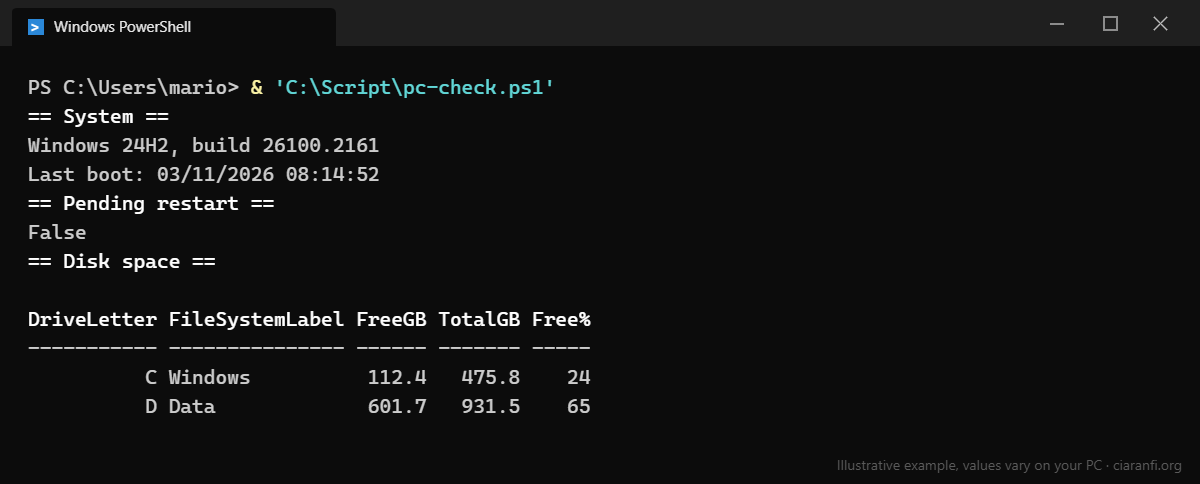
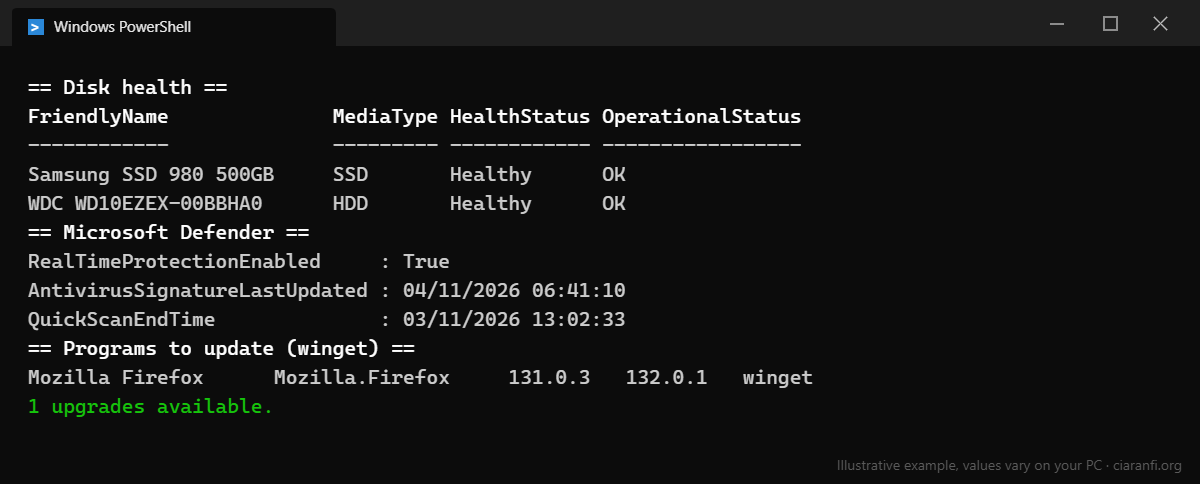
As administrator some sections show more detail, but for home use a normal window is enough. When it finishes you will find pc-check-YYYY-MM-DD.txt on the Desktop.
Step 3: schedule it every week
With Task Scheduler the script runs by itself, for example every Monday at 9. These commands create the task for your user:
$action = New-ScheduledTaskAction -Execute 'powershell.exe' `
  -Argument '-NoProfile -ExecutionPolicy RemoteSigned -File "C:\Script\pc-check.ps1"'
$when = New-ScheduledTaskTrigger -Weekly -DaysOfWeek Monday -At 9am
Register-ScheduledTask -TaskName 'Weekly PC check' -Action $action -Trigger $when `
  -Description 'Weekly report from ciaranfi.org (read-only)'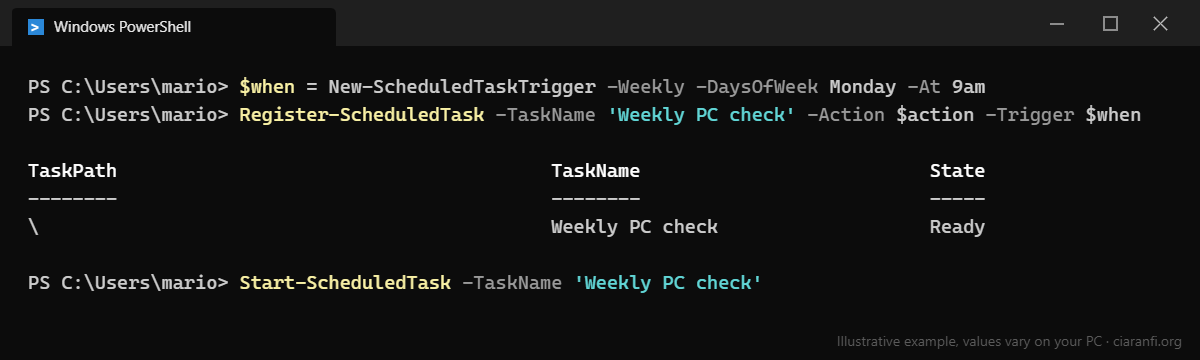
- The
`(backtick) at the end of a line lets you continue the same command on the next line. - The task runs only while you are signed in with your user and briefly opens a PowerShell window.
- To try it now:
Start-ScheduledTask -TaskName 'Weekly PC check'. - To remove it:
Unregister-ScheduledTask -TaskName 'Weekly PC check'(asks for confirmation).
You can also view and edit it in the interface: search for Task Scheduler in the Start menu, folder Task Scheduler Library.
Reading the report
- Pending restart = True: restart the PC as soon as you can.
- Low Free% on C:: use Settings > System > Storage and its clean-up recommendations, or find large files with the command from the first guide.
- HealthStatus other than Healthy: copy important data to another disk at once and check the disk’s S.M.A.R.T. status.
- Defender protection False: open Windows Security and check that an antivirus is active.
- Programs to update: update them with
winget upgrade --id … -eorwinget upgrade --all.
Why read-only? A script that updates or deletes on its own, with nobody watching, can restart the PC at the wrong moment or remove something useful. Use the report for a few weeks first; once you know your PC well you can add, for example, winget upgrade --all --silent, knowing it will close and update programs.
This guide completes the first series on the Windows command line. The next guides in the Guides section will cover networking, services and disks.
Sources
- Microsoft Learn, Start-Transcript.
- Microsoft Learn, Get-Volume and Get-PhysicalDisk.
- Microsoft Learn, Get-MpComputerStatus.
- Microsoft Learn, Register-ScheduledTask and New-ScheduledTaskTrigger.