A service is a program Windows starts in the background, often before you even sign in: the print spooler, Windows Update, the DNS client, Microsoft Defender, and also services added by drivers and installed programs. Knowing how to read them helps you fix common problems (the printer that stops printing), lighten startup and spot something unusual. This is the first guide in the Services and Windows startup series; the basics are in PowerShell for beginners.
Step 1: list services
Get-Service | Where-Object Status -eq 'Running' | Sort-Object DisplayNameFor a specific service, use the short name (Name) or the long one (DisplayName):
Get-Service -Name Spooler
Get-Service -DisplayName '*Update*'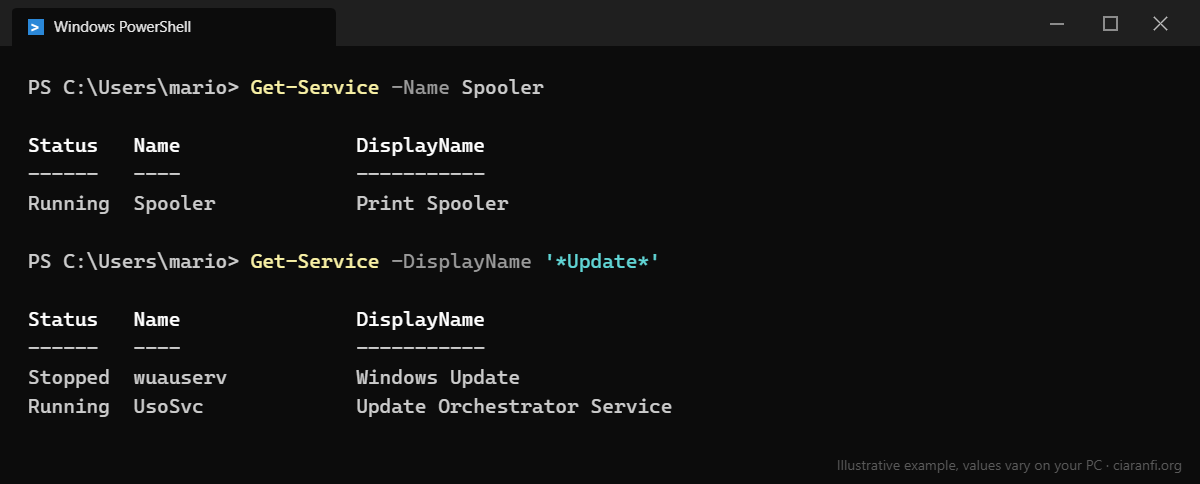
More detail with Win32_Service
Get-Service does not show the program path or the account it runs as. For those you need:
Get-CimInstance Win32_Service -Filter "Name = 'Spooler'" |
Select-Object Name, DisplayName, State, StartMode, StartName, PathName| Field | Meaning |
|---|---|
State |
Running or Stopped |
StartMode |
Auto (starts with Windows), Manual (starts when needed), Disabled (never starts) |
StartName |
The account: LocalSystem, LocalService, NetworkService or a user |
PathName |
The program run, with its parameters |
“Automatic (Delayed Start)”, shown in the Services console, appears simply as Auto in Windows PowerShell 5.1.
Step 2: dependencies
Get-Service -Name Spooler | Select-Object -ExpandProperty RequiredServices
Get-Service -Name LanmanServer | Select-Object -ExpandProperty DependentServices
RequiredServices are the services that must be running for this one to work; DependentServices are those that stop working if you stop it. Always check them before stopping or disabling a service.
Step 3: restart a stuck service
The classic case: documents stay in the queue and the printer does not print. In an administrator window:
Restart-Service -Name Spooler -Force
Get-Service -Name Spooler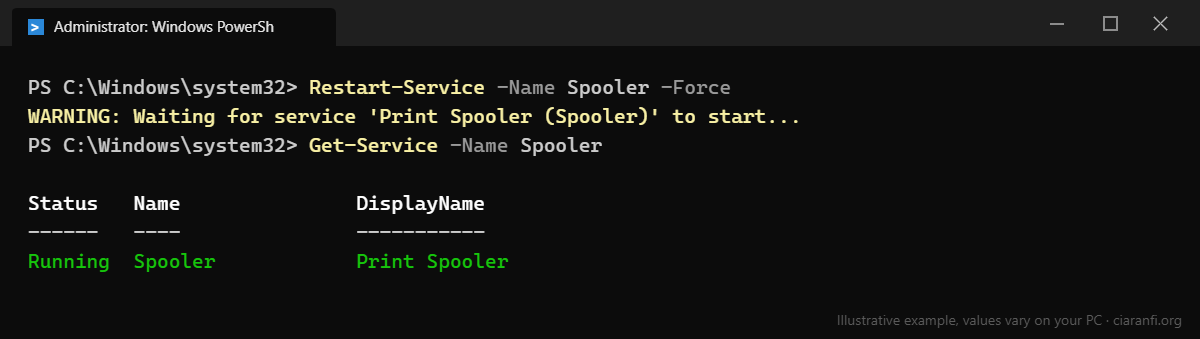
-Force is needed when other services depend on the one you restart. The same pattern works for other services that sometimes hang, such as Audiosrv (Windows audio) or WlanSvc (Wi-Fi configuration). If a service hangs often, the problem lies elsewhere (drivers, updates): restarting it is a temporary fix.
Step 4: change the startup type
If a program installs a service you do not always need (for example the auto-updater of software you rarely use), you can switch it from automatic to manual. As administrator:
Set-Service -Name ServiceName -StartupType ManualManual is almost always better than Disabled: the service does not start with Windows but a program can still start it when needed. Note the original value before changing it.
Beware of sc in PowerShell
Many guides use the sc command. In PowerShell sc is an alias for Set-Content, which writes files: to use the services tool you must type sc.exe, for example sc.exe qc Spooler to see the configuration.
Services not to disable
| Name | Service | If you disable it |
|---|---|---|
wuauserv |
Windows Update | No more security updates |
WinDefend, mpssvc |
Microsoft Defender and Firewall | An unprotected PC |
BFE |
Base Filtering Engine | Firewall and VPNs stop working |
Dhcp, Dnscache |
DHCP and DNS clients | Connection problems |
EventLog, Winmgmt |
Event Log and WMI | Diagnostics and many programs fail |
CryptSvc |
Cryptographic Services | Update and certificate errors |
The “useless services to disable” lists that circulate online bring minimal benefit on modern PCs and often cause problems that are hard to trace back.
Step 5: services in unusual locations
Legitimate services almost always live in C:\Windows or C:\Program Files. This read-only command lists those pointing elsewhere:
Get-CimInstance Win32_Service |
  Where-Object { $_.PathName -and $_.PathName -notmatch '\\Windows\\|\\Program Files' } |
  Select-Object Name, State, StartMode, PathName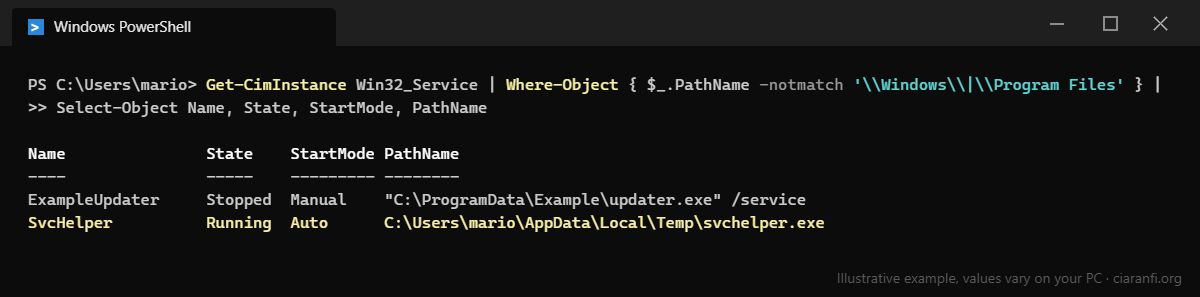
A result does not necessarily mean malware (some drivers and programs use C:\ProgramData), but it is a starting point. To check who signed the program:
Get-AuthenticodeSignature 'C:\ProgramData\Example\service.exe' | Select-Object Status, SignerCertificateIf you find an unknown, unsigned service in a temporary or user-profile folder, run a full Microsoft Defender scan before doing anything else.
Sources
- Microsoft Learn, Get-Service, Restart-Service and Set-Service.
- Microsoft Learn, Win32_Service class.
- Microsoft Learn, sc.exe.
- Microsoft Learn, Get-AuthenticodeSignature.