The list of installed programs is the starting point for many tasks: removing what you do not need, checking that everything is up to date, finding out whether a vulnerable program is present, preparing the list for a new PC. Windows Settings shows it, but you cannot filter or save it. From the command line it takes seconds. You need the basics from PowerShell for beginners and, for the first method, winget.
Four methods compared
| Method | What it shows | When to use it |
|---|---|---|
winget list |
Classic programs and Store apps, with available updates | The fastest, for an overview |
| Registry Uninstall keys | The same programs as Installed apps, with publisher, version, date and uninstall command | For a complete inventory to export |
Get-AppxPackage |
Microsoft Store apps and modern system apps | For Store apps, which the registry does not list |
Win32_Product |
Only programs installed with Windows Installer (MSI) | Avoid it: see the warning below |
Method 1: winget list
winget listUseful filters:
winget list vlc: only programs with “vlc” in the name or Id.winget list --upgrade-available: only those with an update available.winget list --source winget: only those matching a package in the winget catalogue.
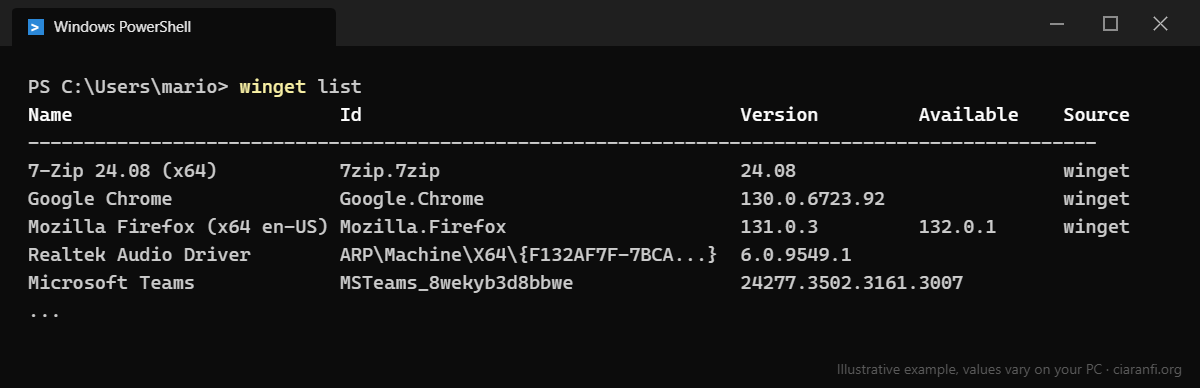
Entries with an Id like ARP\Machine\X64\… are programs winget sees on the system but does not recognise in its catalogue: winget can list and uninstall them, but not update them.
Method 2: read the registry the way Windows does
When a classic program is installed, it registers an entry in one of three Uninstall keys. That is where Windows gets the Installed apps list. This command reads all three keys, removes hidden system components and sorts by name. It is read-only.
$keys = @(
  'HKLM:\SOFTWARE\Microsoft\Windows\CurrentVersion\Uninstall\*',             # 64-bit programs
  'HKLM:\SOFTWARE\WOW6432Node\Microsoft\Windows\CurrentVersion\Uninstall\*', # 32-bit programs
  'HKCU:\SOFTWARE\Microsoft\Windows\CurrentVersion\Uninstall\*'              # installed for your user only
)
$programs = Get-ItemProperty $keys -ErrorAction SilentlyContinue |
  Where-Object { $_.DisplayName -and $_.SystemComponent -ne 1 -and -not $_.ParentKeyName } |
  Select-Object DisplayName, DisplayVersion, Publisher, InstallDate |
  Sort-Object DisplayName -Unique
$programs | Format-Table -AutoSize
"Total: $($programs.Count) programs"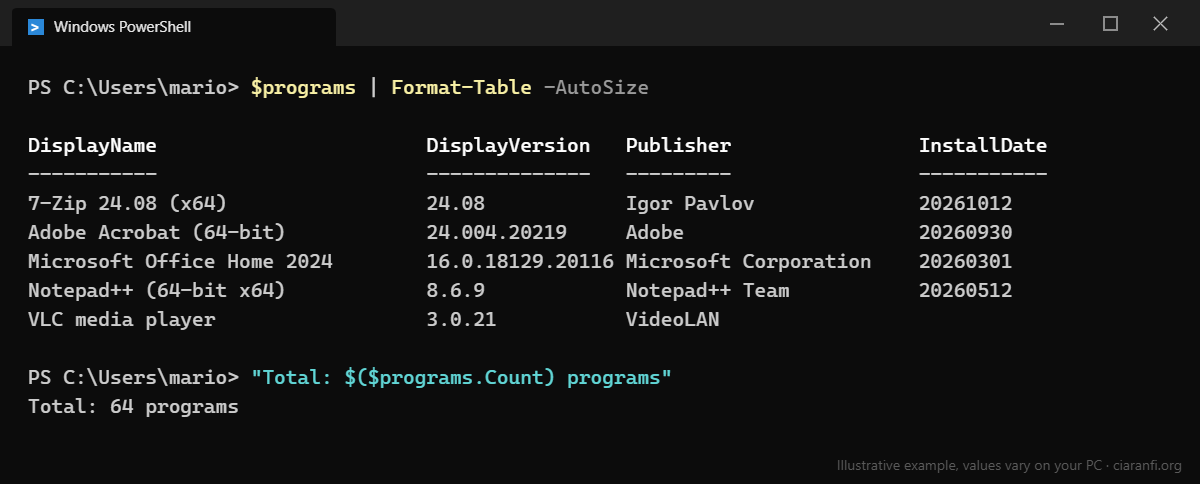
| Line | What it does |
|---|---|
$keys = @(…) |
The three registry locations to read |
Get-ItemProperty |
Reads each entry’s properties; -ErrorAction SilentlyContinue skips unreadable entries |
Where-Object |
Keeps entries with a name, excludes system components (SystemComponent = 1) and updates tied to another program (ParentKeyName) |
Select-Object |
Picks the columns: name, version, publisher, install date (YYYYMMDD format) |
Sort-Object -Unique |
Sorts by name and removes duplicates |
Finding a specific program
$programs | Where-Object DisplayName -like '*Java*'Handy when a security advisory concerns some software and you want to know whether it is installed and which version.
Exporting the list to Excel
$programs | Export-Csv "$env:USERPROFILE\Desktop\installed-programs.csv" -NoTypeInformation -Encoding UTF8The file ends up on the Desktop; double-click it to open it. If your Excel uses a semicolon as list separator (common in many European locales), add -Delimiter ';' so the columns split correctly.
- Open the CSV file in Excel.
- Select the first row and turn on Data > Filter.
- Filter by publisher or sort by install date to spot recent or unknown programs.
Method 3: Microsoft Store apps
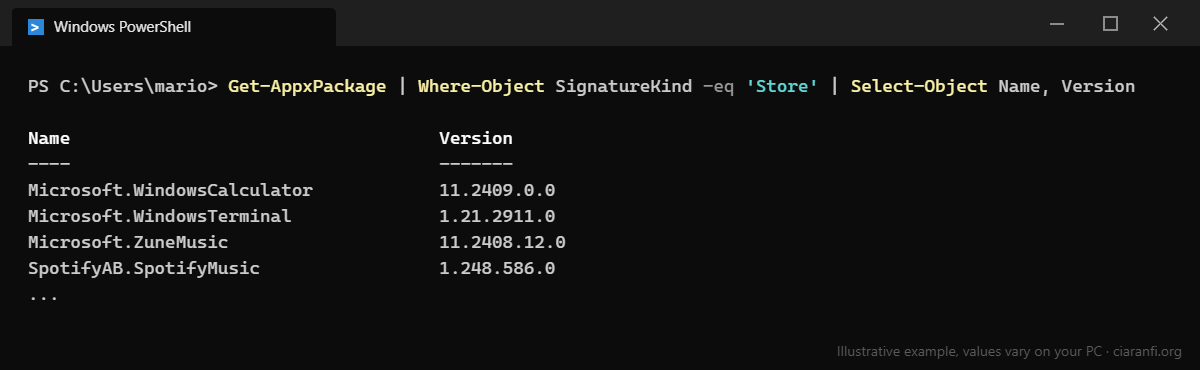
Get-AppxPackage | Where-Object SignatureKind -eq 'Store' |
  Select-Object Name, Version | Sort-Object Name
SignatureKind -eq 'Store' keeps only apps downloaded from the Store and leaves out system components and libraries. For a single app: Get-AppxPackage -Name *Spotify*.
The command to avoid: Win32_Product
Many online guides suggest Get-WmiObject Win32_Product or wmic product get name. Microsoft advises against this class: it is slow, lists only MSI programs and, every time it is queried, starts a consistency check that can reconfigure installed programs, leaving messages in the Event Log. Use the methods above instead.
FAQ
Why do the counts differ between methods? Each method looks in a different place: winget combines registry and Store, the registry does not include Store apps, and some entries are duplicated for 32 and 64 bit. For an inventory, use the registry plus Store apps.
InstallDate is empty. Not every installer fills it in: it is not an error.
Can I do this on another PC on the network? Yes, with PowerShell remoting, but it needs dedicated setup that a future guide will cover.
The next guide uses this list to uninstall programs safely from the command line.
Sources
- Microsoft Learn, Working with software installations (including the Win32_Product caution).
- Microsoft Learn, winget list command.
- Microsoft Learn, Get-AppxPackage.
- Microsoft Learn, Windows Installer reconfigured all installed applications (KB 974524).