Every program that accepts connections from the network “listens” on a port: file sharing on 445, Remote Desktop on 3389, a test server on 8080. Windows Firewall decides which of these ports other devices can reach. With PowerShell you can see both and act precisely. This is the third guide in the Network and connection series; to test a port from another PC use Test-NetConnection -Port, explained in diagnosing your network with PowerShell.
Step 1: which ports are listening
Get-NetTCPConnection -State Listen |
  Select-Object LocalAddress, LocalPort,
    @{n='Process'; e={(Get-Process -Id $_.OwningProcess -ErrorAction SilentlyContinue).ProcessName}},
    OwningProcess |
  Sort-Object LocalPort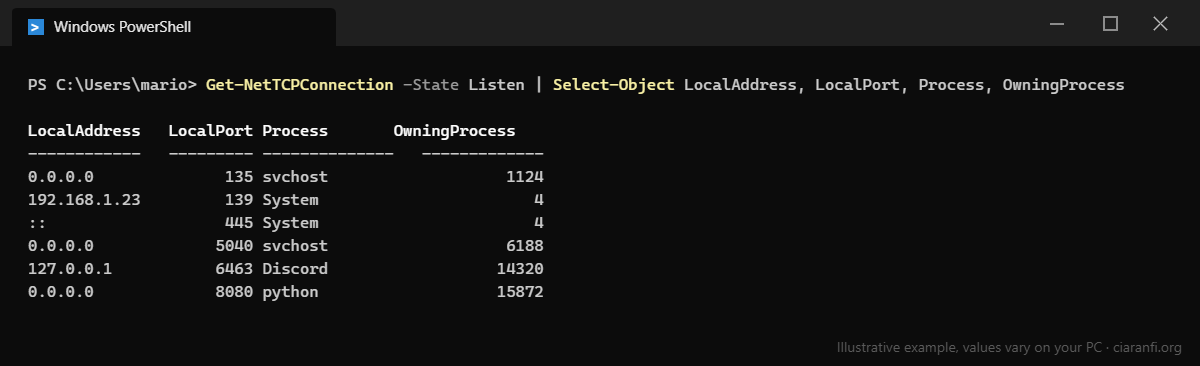
| LocalAddress | Meaning |
|---|---|
127.0.0.1 or ::1 |
Listens only to the PC itself: not reachable from the network |
0.0.0.0 or :: |
Listens on every adapter: reachable from the network if the firewall allows it |
A specific address, e.g. 192.168.1.23 |
Listens only on that adapter |
Many processes are called svchost: it is the host for Windows services. To find which service is behind a PID:
Get-CimInstance Win32_Service -Filter "ProcessId = 1234" | Select-Object Name, DisplayNameUDP ports are shown by Get-NetUDPEndpoint. The old netstat -ano gives the same information as text.
Ports you almost always find on Windows
| Port | Service |
|---|---|
| 135 | RPC, used by Windows services |
| 139, 445 | File and printer sharing (SMB) |
| 5040 | Windows service for connected devices |
| 5357 | Network device discovery |
| High ports (49152 and above) | Dynamic ports Windows assigns to services and programs |
A port you do not recognise is not necessarily a problem: check the program name and, if you do not know it, look it up before closing it.
Step 2: is the network public or private?
Get-NetConnectionProfile | Select-Object Name, InterfaceAlias, NetworkCategoryThe firewall applies different rules per profile: Public (cafés, hotels, airports) blocks almost everything inbound; Private (home, trusted office) allows things like file sharing and device discovery. If your home network shows as public and you need to see your NAS or printer, in an administrator window:
Set-NetConnectionProfile -InterfaceAlias 'Wi-Fi' -NetworkCategory PrivateNever do this for networks you do not control.
Step 3: firewall status
Get-NetFirewallProfile | Select-Object Name, Enabled, DefaultInboundAction, DefaultOutboundAction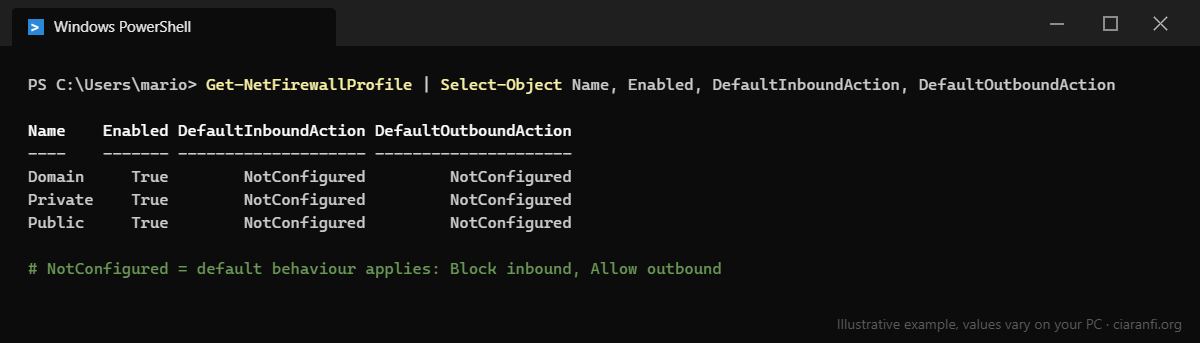
All three profiles (Domain, Private, Public) should show Enabled = True. Windows’ default is: inbound Block unless a rule allows, outbound Allow. If a profile is off, turn it back on in Windows Security > Firewall & network protection.
Step 4: which rules let traffic in
Get-NetFirewallRule -Direction Inbound -Enabled True -Action Allow |
  Select-Object DisplayName, Profile |
  Sort-Object DisplayName
To see a rule’s port and program:
$r = Get-NetFirewallRule -DisplayName 'Remote Desktop - User Mode (TCP-In)'
$r | Get-NetFirewallPortFilter | Select-Object Protocol, LocalPort
$r | Get-NetFirewallApplicationFilter | Select-Object Program
Built-in rule names depend on the Windows language: copy the exact name from the previous list.
Step 5: open a port precisely, then close it
Example: you need to reach a test server on port 8080 from your phone, only from the home network. As administrator:
New-NetFirewallRule -DisplayName 'Test 8080 (home)' -Direction Inbound -Protocol TCP -LocalPort 8080 `
  -Action Allow -Profile Private -RemoteAddress LocalSubnet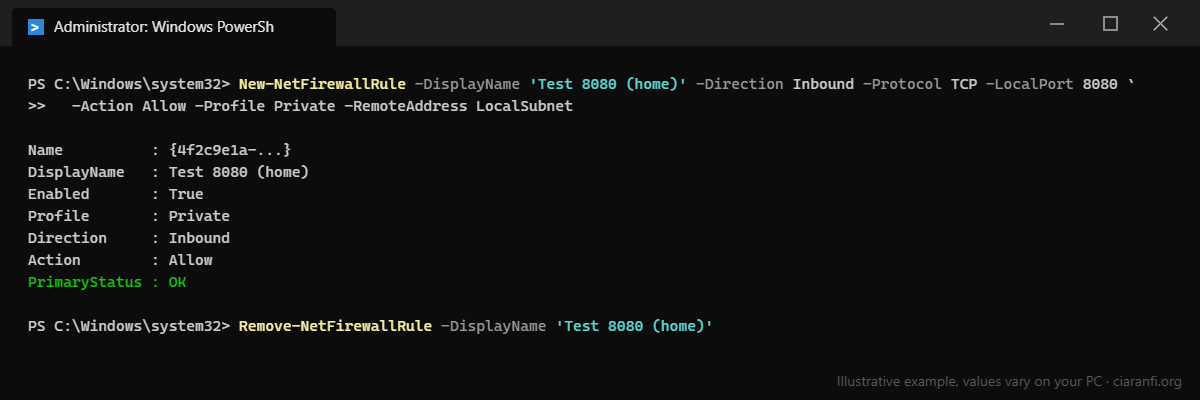
-Profile Private: the rule applies only on private networks, not public ones.-RemoteAddress LocalSubnet: accepts connections only from devices on the same local network.
When you no longer need it, disable or delete it:
Disable-NetFirewallRule -DisplayName 'Test 8080 (home)'
Remove-NetFirewallRule  -DisplayName 'Test 8080 (home)'
Do not turn off the firewall to “make a program work”: open only the port you need, only for the private profile and, where possible, only for the local network. Opening a port in Windows Firewall does not make it reachable from the Internet: that would also need port forwarding on the router, which you should avoid for services such as Remote Desktop, file sharing and cameras.
Sources
- Microsoft Learn, Get-NetTCPConnection and Get-NetUDPEndpoint.
- Microsoft Learn, New-NetFirewallRule, Get-NetFirewallProfile.
- Microsoft Learn, Set-NetConnectionProfile.
- Microsoft Learn, Windows Firewall.