Uninstalling from Settings is fine for the occasional program. The command line becomes useful when you need to remove several programs, repeat the same clean-up on other PCs, remove Store apps that Settings will not let you remove, or understand why an uninstall fails. This guide uses the list from listing installed programs and the winget commands.
Uninstalling deletes things. Before you start, make sure your documents are backed up, check the exact name of what you are removing and do not remove drivers, system components or programs you do not recognise until you know what they do.
Step 0: create a restore point
A restore point lets you roll the system back if something goes wrong. Open PowerShell as administrator:
Checkpoint-Computer -Description "Before uninstalling" -RestorePointType MODIFY_SETTINGSThe command exists in Windows PowerShell 5.1 (the version included in Windows), not in PowerShell 7. It only works if System Protection is on for drive C: (Control Panel > System > System Protection). With this command Windows creates at most one restore point every 24 hours: if you already created one today, you will see a warning and can use that one.
Method 1: winget uninstall
Find the exact Id and uninstall:
winget list notepad
winget uninstall --id Notepad++.Notepad++ -e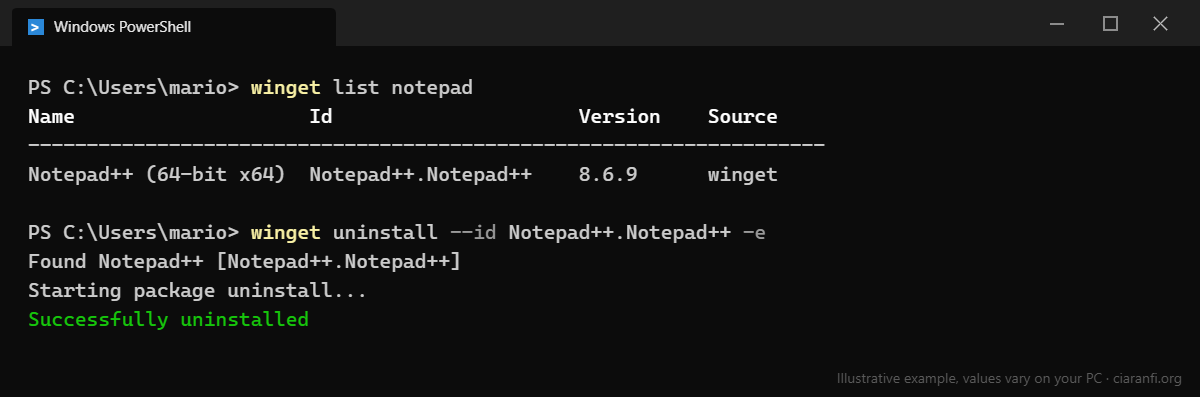
| Option | Effect |
|---|---|
--silent |
Uninstalls without windows, if the program allows it |
--interactive |
Shows the publisher’s procedure (useful if it asks what to keep) |
--scope user or machine |
When the program is installed both for the user and for the machine |
--purge |
For portable packages: also deletes the package folder |
winget also uninstalls programs it did not install, including entries with Ids like ARP\Machine\X64\{…}: in that case use the Id exactly as shown, in quotes.
Method 2: Microsoft Store apps
Modern apps are removed with Remove-AppxPackage, for the current user. First check what matches the name:
Get-AppxPackage -Name *ZuneMusic* | Select-Object Name, Version
Get-AppxPackage -Name *ZuneMusic* | Remove-AppxPackage -WhatIf
Get-AppxPackage -Name *ZuneMusic* | Remove-AppxPackage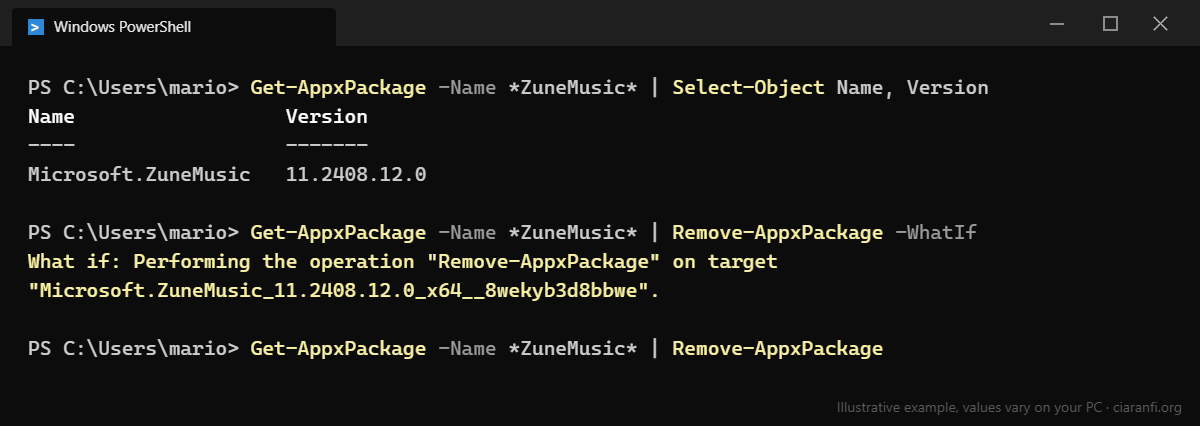
- The first line shows the packages found: check it is only the one you want.
- The second, with
-WhatIf, shows what would be removed without doing it. - The third actually removes the package. If you change your mind, reinstall the app from the Microsoft Store.
Many preinstalled apps are also “provisioned”: Windows installs them for every new user. Removing them for future users too needs an administrator window and Remove-AppxProvisionedPackage -Online. That changes the Windows image: do it only for apps you know, never for components such as the Store itself, Terminal or the Microsoft.VCLibs and Microsoft.NET libraries other apps depend on.
Method 3: the registered uninstall command
Every classic program registers its own uninstall command in the registry. To read it (read-only):
$keys = @(
  'HKLM:\SOFTWARE\Microsoft\Windows\CurrentVersion\Uninstall\*',
  'HKLM:\SOFTWARE\WOW6432Node\Microsoft\Windows\CurrentVersion\Uninstall\*',
  'HKCU:\SOFTWARE\Microsoft\Windows\CurrentVersion\Uninstall\*'
)
Get-ItemProperty $keys -ErrorAction SilentlyContinue |
  Where-Object DisplayName -like '*7-Zip*' |
  Select-Object DisplayName, UninstallString, QuietUninstallString |
  Format-List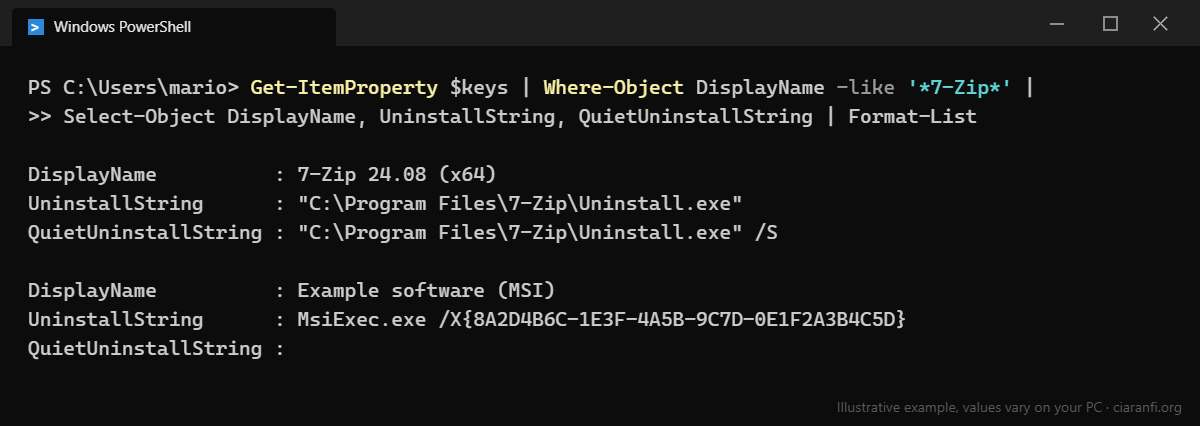
What you will find and how to use it:
| If the command is… | Installer type | How to uninstall |
|---|---|---|
MsiExec.exe /I{GUID} or /X{GUID} |
Windows Installer (MSI) | Start-Process msiexec.exe -ArgumentList '/x {GUID} /passive /norestart' -Wait |
A path to an .exe file |
Publisher’s installer | Run that file; silent options vary by publisher |
QuietUninstallString is present |
The publisher provides a silent mode | Use that command as is |
With msiexec, /passive shows only a progress bar, /qn shows nothing, /norestart prevents automatic restarts. Replace {GUID} with the code in braces from the registry, braces included.
For .exe installers do not guess silent options: some use /S, others /VERYSILENT or /uninstall, and a wrong option can start the interactive procedure or do nothing. Check the publisher’s documentation or use winget, which knows them for packages in its catalogue.
msiexec result codes
| Code | Meaning | What to do |
|---|---|---|
| 0 | Success | Nothing |
| 3010 | Success, restart required | Restart when you can |
| 1605 | The product is not installed | Wrong GUID or already uninstalled: check the registry again |
| 1618 | Another installation is in progress | Wait for it to finish or restart, then retry |
| 1603 | Fatal error during the operation | Read the msiexec log (option /l*v C:\Temp\log.txt) or try Microsoft’s install and uninstall troubleshooter |
To see the code after Start-Process, add -PassThru and read .ExitCode:
$p = Start-Process msiexec.exe -ArgumentList '/x {GUID} /passive /norestart' -Wait -PassThru
$p.ExitCode
After uninstalling
- Check the program no longer appears:
winget list name. - Restart if required (code 3010 or an installer message).
- Personal settings may remain in
%AppData%or%LocalAppData%. Delete those folders only if you are sure they belong to the removed program and you no longer need them. - Do not use “registry cleaners”: they do not improve performance and can make the system unstable.
What not to uninstall
- Microsoft Visual C++ Redistributable and .NET: other programs need them, even when they look like duplicates.
- Drivers for graphics, audio, network and chipset: update them, do not remove them, unless you have a specific problem.
- PC manufacturer tools that manage battery, keyboard or BIOS updates, until you know what they do.
- Antivirus: if you switch, remove the old one only after checking that Microsoft Defender or the new one is active.
Sources
- Microsoft Learn, winget uninstall command.
- Microsoft Learn, Remove-AppxPackage and Remove-AppxProvisionedPackage.
- Microsoft Learn, msiexec and Windows Installer error codes.
- Microsoft Learn, Checkpoint-Computer.