Three questions come up often: why did the PC restart?, why does it switch off by itself?, why will it not sleep, or why does it wake up at night? Windows records the answers in the Event Log and in the powercfg tool. This is the third guide in the Services and Windows startup series, after programs that start with Windows. Many commands here need an administrator window: this is stated each time.
Step 1: how long has the PC been on?
$boot = (Get-CimInstance Win32_OperatingSystem).LastBootUpTime
"Last boot: $boot"
"Up for:    " + ((Get-Date) - $boot).ToString("d' days 'h' hours'")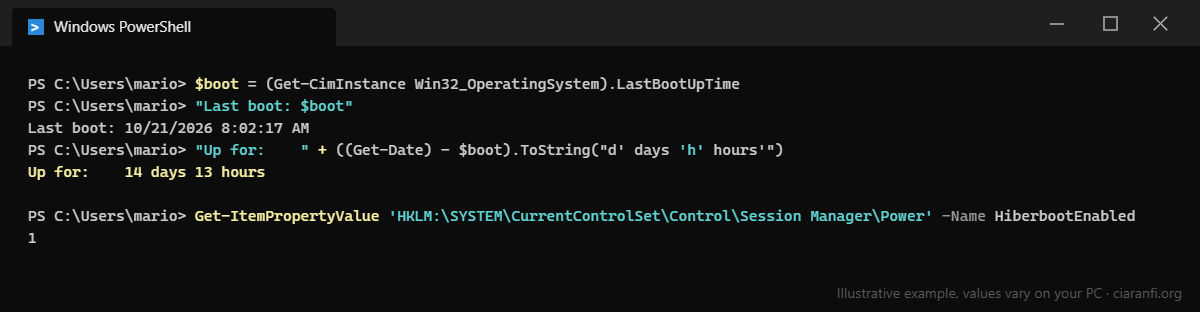
Why so long? Fast startup
With fast startup on (the default on many PCs), Shut down does not fully turn Windows off: it saves the system to disk, like a partial hibernation. That is why uptime does not reset and some problems do not go away by “turning it off and on again”. Restart, on the other hand, always does a full boot.
Get-ItemPropertyValue 'HKLM:\SYSTEM\CurrentControlSet\Control\Session Manager\Power' -Name HiberbootEnabled1 means fast startup is on. For a full shutdown without changing settings:
shutdown /s /t 0| Command | Effect |
|---|---|
shutdown /s /t 0 |
Immediate full shutdown |
shutdown /r /t 0 |
Immediate restart |
shutdown /r /o /t 0 |
Restart into the advanced startup options menu (recovery, safe mode) |
shutdown /s /t 600 then shutdown /a |
Shutdown in 10 minutes, and cancelling it |
Save your work before using them: they close programs.
Step 2: who restarted or shut down the PC?
Get-WinEvent -FilterHashtable @{LogName='System'; Id=1074} -MaxEvents 10 |
  Select-Object TimeCreated, @{n='Details'; e={$_.Message -replace '\s+',' '}} |
  Format-List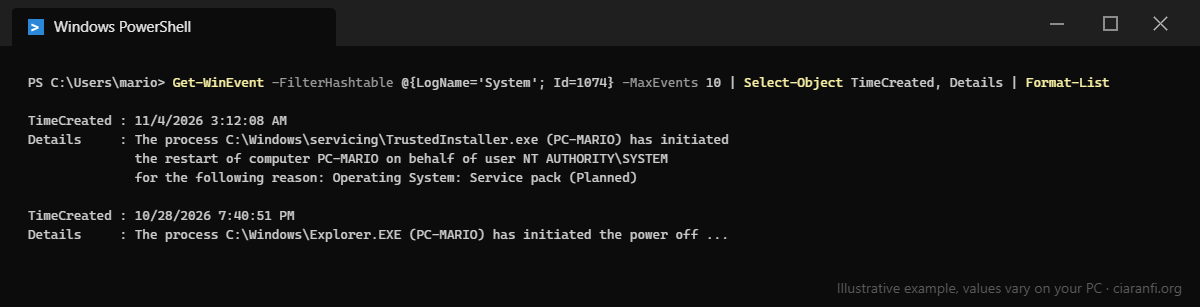
Event 1074 records every requested restart or shutdown: the program or user that asked for it and the reason. If you see TrustedInstaller.exe or MoUsoCoreWorker.exe with an update-related reason, it was Windows Update. To avoid restarts during working hours, set Active hours in Settings > Windows Update > Advanced options.
Step 3: unexpected shutdowns
Get-WinEvent -FilterHashtable @{LogName='System'; Id=41,6008} -MaxEvents 10 |
Select-Object TimeCreated, Id, ProviderName| Event | Source | Meaning |
|---|---|---|
| 41 | Kernel-Power | The system rebooted without shutting down cleanly |
| 6008 | EventLog | The previous shutdown was unexpected (with date and time) |
| 6005 / 6006 | EventLog | Normal start and stop of the Event Log service: useful to rebuild the sequence |
Repeated event 41 without power cuts usually points to power supply, overheating or driver problems. Check the power supply or battery, clean the fans, update drivers and BIOS. If a blue screen also appears, the stop code is in event 1001 (source BugCheck).
Step 4: what wakes the PC
powercfg /lastwake
powercfg /waketimers
/lastwake says what woke the PC last time (network adapter, mouse, a timer); /waketimers lists scheduled timers, such as a maintenance task or an update. To stop a device from waking the PC:
powercfg /devicequery wake_armed
powercfg /devicedisablewake "Device name"
Run the second command as administrator, with the exact name copied from the list.
Step 5: what prevents sleep
As administrator:
powercfg /requests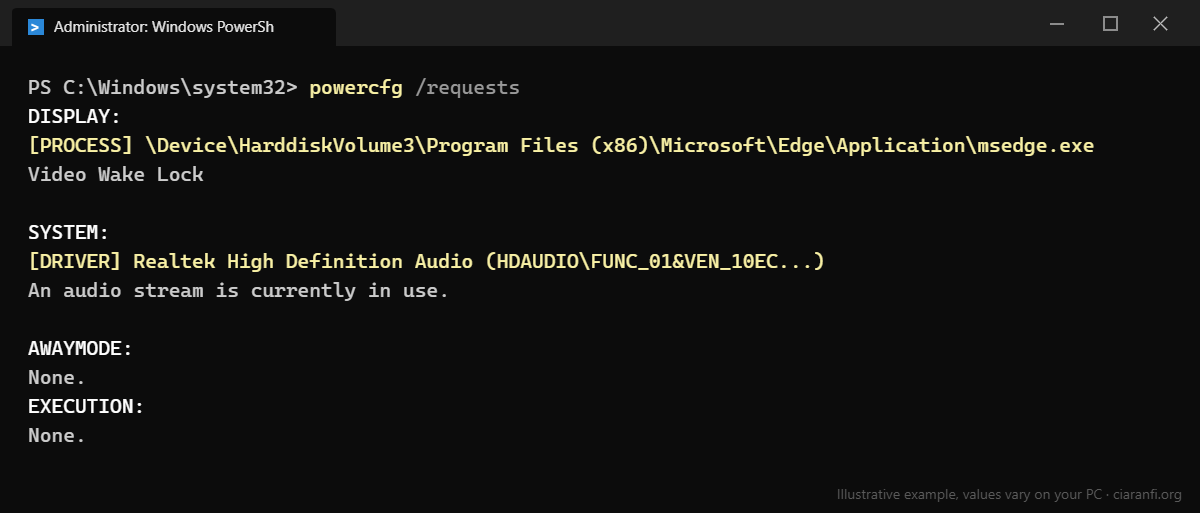
It shows the programs and drivers asking to keep the display or system on: typically a video playing in the browser, a call, a download, an audio driver. Close the program shown and try again. powercfg /a lists the sleep states the PC supports.
Step 6: energy and battery reports
| Command | What it produces |
|---|---|
powercfg /batteryreport |
battery-report.html with design capacity, current capacity and battery usage history (laptops) |
powercfg /energy (administrator) |
Observes the system for 60 seconds and saves energy-report.html with errors and warnings about power use and sleep |
powercfg /sleepstudy |
On “modern standby” PCs, a report of what draws power during sleep |
The files are saved in the folder the PowerShell window is in (the command tells you); open them with Start-Process .\battery-report.html. If current battery capacity is below 70–80% of the design capacity, it is normal for it to last much less than when new.
Sources
- Microsoft Learn, powercfg command-line options.
- Microsoft Learn, shutdown.
- Microsoft Learn, Get-WinEvent.
- Microsoft Learn, Kernel-Power event 41.