Many programs add themselves to Windows startup without asking: auto-updaters, icons by the clock, sync clients. Each one slows sign-in a little and uses memory. Task Manager > Startup apps shows some of them; PowerShell lets you see every place a program can start from. This is the second guide in the Services and Windows startup series, after Windows services.
Where startup programs hide
| Location | For whom | Shown in Task Manager? |
|---|---|---|
Registry HKCU\…\Run |
Your user only | Yes |
Registry HKLM\…\Run (and WOW6432Node) |
All users | Yes |
| User and common Startup folders | User or all | Yes |
| Scheduled tasks “at log on” | User or all | No |
| Automatic services | System | No (see the services guide) |
Step 1: the quick list
Get-CimInstance Win32_StartupCommand | Select-Object Name, Command, Location, User | Format-List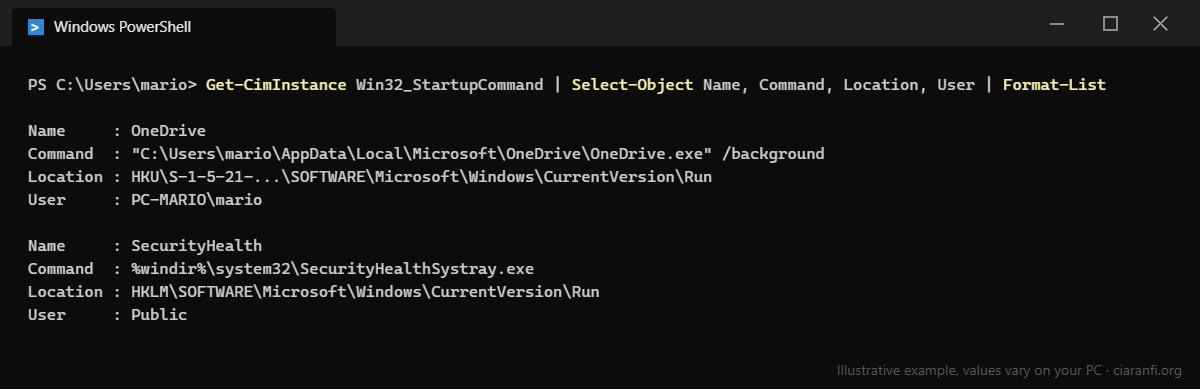
It combines Run keys and Startup folders. Location says where the entry starts from, Command what runs.
Step 2: registry Run keys, one by one
$run = @(
  'HKCU:\Software\Microsoft\Windows\CurrentVersion\Run',
  'HKLM:\Software\Microsoft\Windows\CurrentVersion\Run',
  'HKLM:\Software\WOW6432Node\Microsoft\Windows\CurrentVersion\Run'
)
foreach ($k in $run) {
  "== $k"
  Get-ItemProperty $k -ErrorAction SilentlyContinue |
    Select-Object * -ExcludeProperty PS* | Format-List
}
Each property is a program: name on the left, command on the right. There are also RunOnce keys, which run a command only once at the next sign-in (often used by installers).
Step 3: the Startup folders
Get-ChildItem "$env:APPDATA\Microsoft\Windows\Start Menu\Programs\Startup"
Get-ChildItem "$env:ProgramData\Microsoft\Windows\Start Menu\Programs\StartUp"
You can also open them from Run (Win+R) with shell:startup and shell:common startup. They contain shortcuts: deleting the shortcut does not uninstall the program.
Step 4: scheduled tasks that run at logon
Get-ScheduledTask | Where-Object {
  $_.State -ne 'Disabled' -and
  ($_.Triggers | Where-Object { $_.CimClass.CimClassName -eq 'MSFT_TaskLogonTrigger' })
} | Select-Object TaskPath, TaskName, State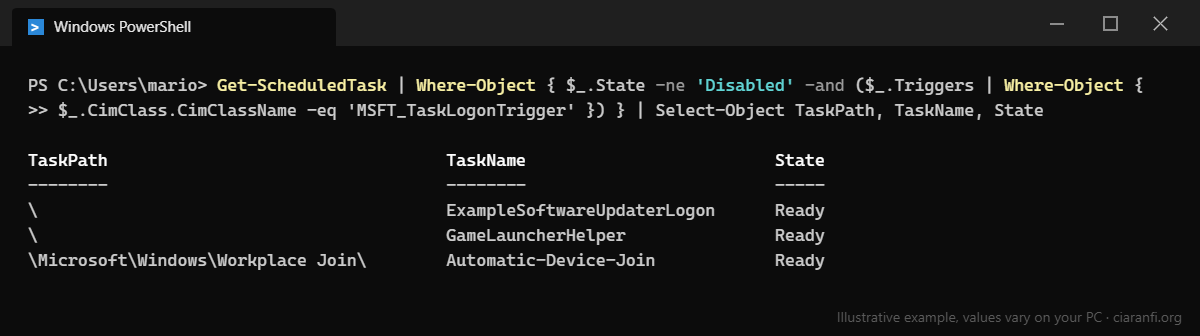
Many tasks under \Microsoft\Windows\ are part of the system: leave them alone. Look instead at those in the root \ or named after a software vendor: they are often auto-updaters or “helpers” that start at every sign-in.
Step 5: disable things reversibly
- For Task Manager entries (registry and folders): Task Manager > Startup apps, right-click, Disable, or Settings > Apps > Startup. Windows remembers the choice without deleting the entry: you can re-enable it at any time. This is the recommended method.
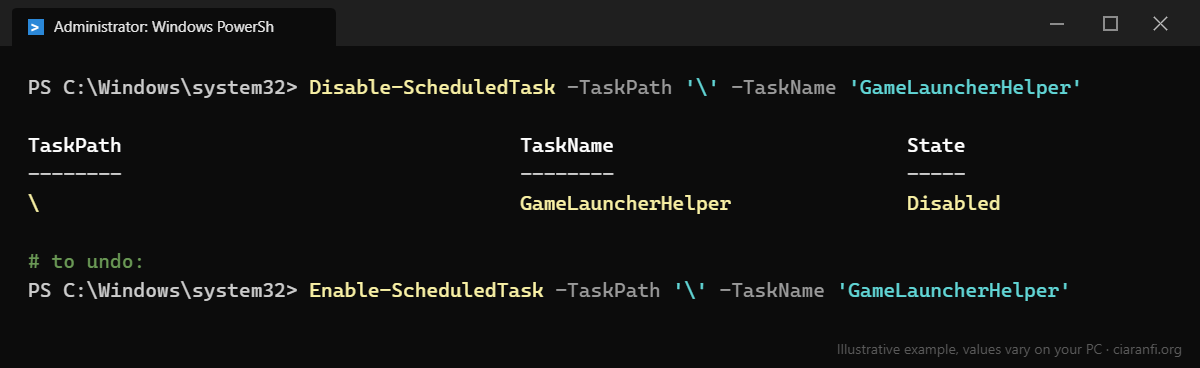
- For scheduled tasks, as administrator:
Disable-ScheduledTask -TaskPath '\' -TaskName 'TaskName' Enable-ScheduledTask -TaskPath '\' -TaskName 'TaskName' # to undo - In the program’s own settings: many apps have a “Start with Windows” option. It is the cleanest fix, because the program will not add itself back at the next update.
Avoid deleting registry values by hand: if you get it wrong, you lose the information needed to restore them.
What to keep and what to remove
| Keep it on | Usually safe to remove |
|---|---|
| Windows Security and your antivirus | Auto-updaters of rarely used programs |
| Audio, touchpad and keyboard drivers and the manufacturer tools that manage them | Chat and music clients you can open when needed |
| OneDrive or the sync client you actually rely on for backups | “Assistants”, toolbars and game launchers |
If startup is still slow after the clean-up, the cause may be elsewhere: to measure it with the Event Log see slow PC startup: what is slowing it down.
Suspicious entries
Watch out for commands that run powershell.exe with -EncodedCommand or -WindowStyle Hidden, wscript.exe or mshta.exe, or programs in Temp or AppData folders with random names. They are not always malware, but deserve a full Microsoft Defender scan before anything else.
Sources
- Microsoft Learn, Win32_StartupCommand class.
- Microsoft Learn, Run and RunOnce registry keys.
- Microsoft Learn, Get-ScheduledTask and Disable-ScheduledTask.