The Windows Update page in Settings tells you whether the PC is up to date, but not always what was installed, what failed and why. From PowerShell you can check precisely, even on several computers, and set up a regular check. The basics are in PowerShell for beginners; for program updates (not Windows) see winget.
Step 1: which Windows version do I have?
Get-ItemProperty 'HKLM:\SOFTWARE\Microsoft\Windows NT\CurrentVersion' |
  Select-Object ProductName, DisplayVersion, CurrentBuild, UBR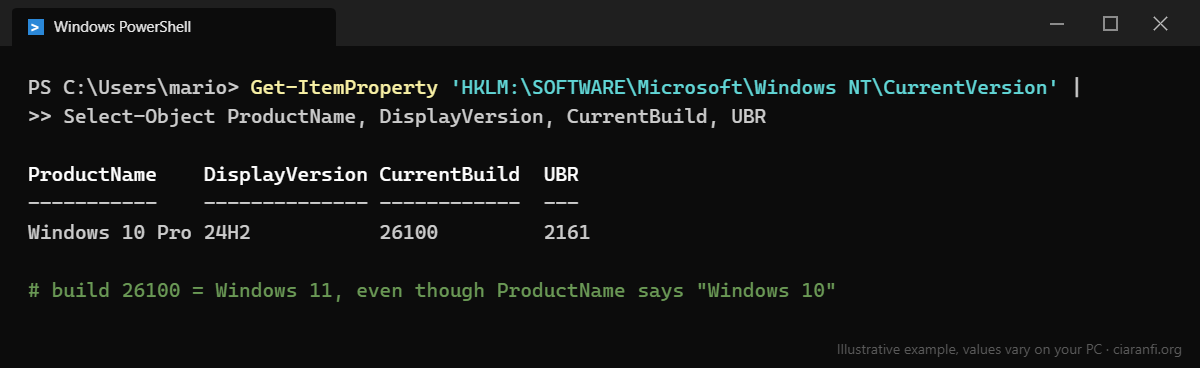
| Field | Meaning |
|---|---|
DisplayVersion |
The version, for example 23H2 or 24H2 |
CurrentBuild |
The build number: 22000 and above is Windows 11, below is Windows 10 |
UBR |
The update level: it grows with every monthly cumulative update |
ProductName |
The edition name. Note: on many Windows 11 PCs it still says “Windows 10”, a known quirk; trust the build |
The full build is written CurrentBuild.UBR, for example 26100.2161: the number Microsoft quotes in each update’s release notes. Alternatively, winver opens a window with the same information.
Step 2: installed updates
The quickest command:
Get-HotFix | Sort-Object InstalledOn -Descending | Select-Object -First 10 HotFixID, Description, InstalledOnGet-HotFix shows only some updates (those registered as operating system “hotfixes”): Defender definitions and some component updates are missing, for example. For the full history, including failed updates, use the Windows Update interface built into the system:
$session  = New-Object -ComObject Microsoft.Update.Session
$searcher = $session.CreateUpdateSearcher()
$total    = $searcher.GetTotalHistoryCount()
$result   = @{1='In progress'; 2='Succeeded'; 3='Succeeded with errors'; 4='Failed'; 5='Aborted'}
$searcher.QueryHistory(0, [Math]::Min($total, 20)) |
  Select-Object Date, @{n='Result'; e={$result[[int]$_.ResultCode]}}, Title |
  Format-Table -Wrap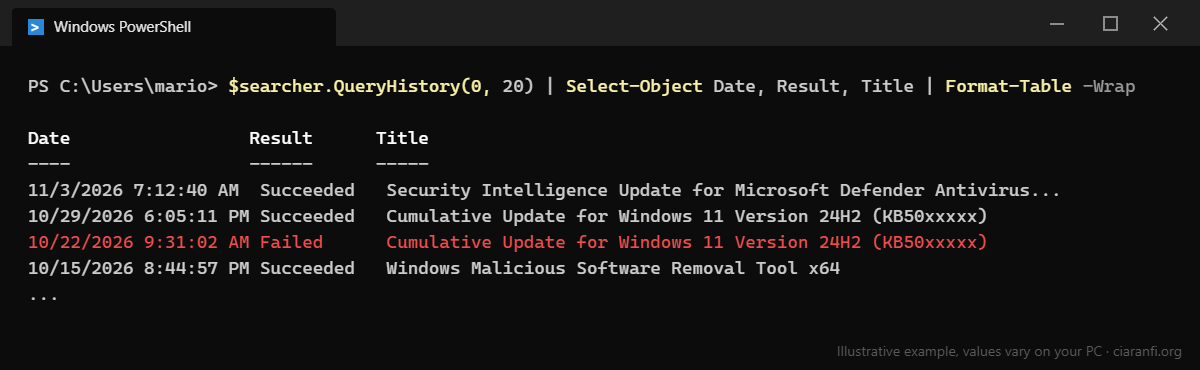
Dates are in UTC. If an update appears several times as “Failed”, note the KB number in the title: you will need it to look up the fix in Microsoft’s release notes.
Step 3: what is waiting to be installed
With the same object you can ask Windows Update what is missing, without installing anything. The search can take a few minutes:
$pending = $searcher.Search("IsInstalled=0 and IsHidden=0").Updates
$pending | Select-Object Title, @{n='KB'; e={$_.KBArticleIDs -join ','}}, IsDownloaded
If the list is empty, the PC is up to date with what Windows Update offers at that moment.
Is a restart needed?
Test-Path 'HKLM:\SOFTWARE\Microsoft\Windows\CurrentVersion\WindowsUpdate\Auto Update\RebootRequired'True means an update is installed but only takes effect after a restart. Many “strange” problems after updates disappear simply by restarting.
Step 4: installing updates
Recommended: Settings
Start-Process ms-settings:windowsupdateThis opens the Windows Update page directly: click Check for updates. It is the method Microsoft supports and the one to prefer on a home PC.
From the command line: the PSWindowsUpdate module
Windows has no official cmdlet for installing updates. The most widely used module is PSWindowsUpdate, distributed through the PowerShell Gallery: a community project, not Microsoft’s, popular with system administrators. Install it once, for your user:
Install-Module PSWindowsUpdate -Scope CurrentUserPowerShell may ask to install the NuGet provider and warn that the PowerShell Gallery is an “untrusted repository”: that is normal, confirm only if you want this module. Then, in an administrator window:
Get-WindowsUpdate                 # lists available updates
Install-WindowsUpdate -AcceptAll  # downloads and installs them, without restarting on its own
Get-WUHistory -Last 10            # last installed updates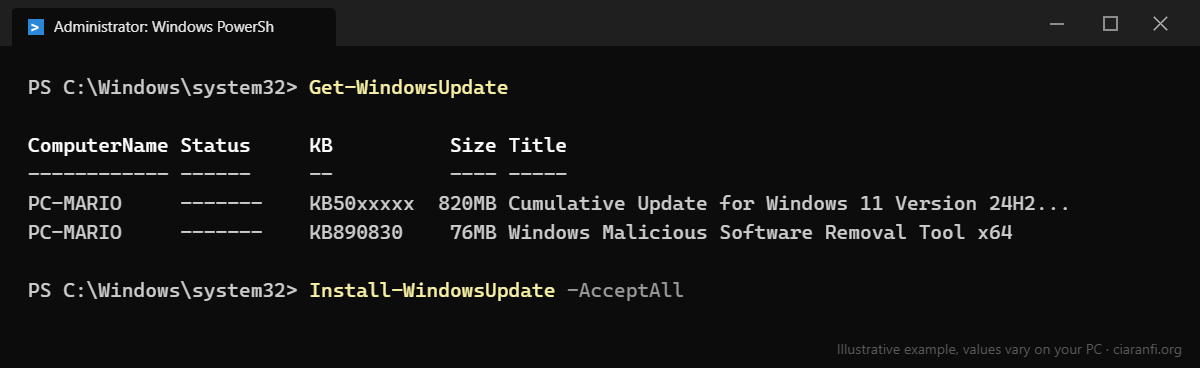
Avoid -AutoReboot on the PC you are using: it restarts without asking. Do not use commands such as UsoClient found online: Microsoft does not document them and their behaviour changes between versions.
Step 5: updating Microsoft Defender
Update-MpSignature
Get-MpComputerStatus | Select-Object AntivirusSignatureLastUpdated, AMProductVersion, RealTimeProtectionEnabled
Defender definitions update by themselves several times a day; the command is useful after a period offline or to check that real-time protection is on (True).
When updates will not install
- Restart and try again: a previous update is often waiting for a restart.
- Check free space:
Get-Volume C. Cumulative updates need several GB free. - Use the troubleshooter: Settings > System > Troubleshoot > Other troubleshooters > Windows Update.
- Repair system files, in an administrator window, in this order:
DISM /Online /Cleanup-Image /RestoreHealth
sfc /scannow
DISM repairs the Windows image by downloading healthy files from Windows Update; SFC then checks and replaces damaged system files. Each can take 10 to 30 minutes: do not close the window.
- If the error persists, search for the code (for example
0x800f0922) together with the KB number on Microsoft’s support pages.
Supported version. Security updates only reach Windows versions that are still supported. Compare your DisplayVersion with the end-of-support dates in Microsoft’s Windows lifecycle pages.
Sources
- Microsoft Learn, Get-HotFix.
- Microsoft Learn, IUpdateSearcher::QueryHistory and OperationResultCode (Windows Update API).
- PowerShell Gallery, PSWindowsUpdate.
- Microsoft Learn, Update-MpSignature.
- Microsoft Learn, Repair a Windows image (DISM).
- Microsoft, product lifecycle.