The Wi-Fi icon with its bars tells you little. When the connection is slow or drops, you need precise figures: how strong the signal is, which channel and band you are on, what speed the PC talks to the router at and when it disconnected. Windows has all of this in the netsh wlan command, which works in both PowerShell and Command Prompt. This is the second guide in the Network and connection series, after diagnosing your network with PowerShell.
Step 1: connection status
netsh wlan show interfaces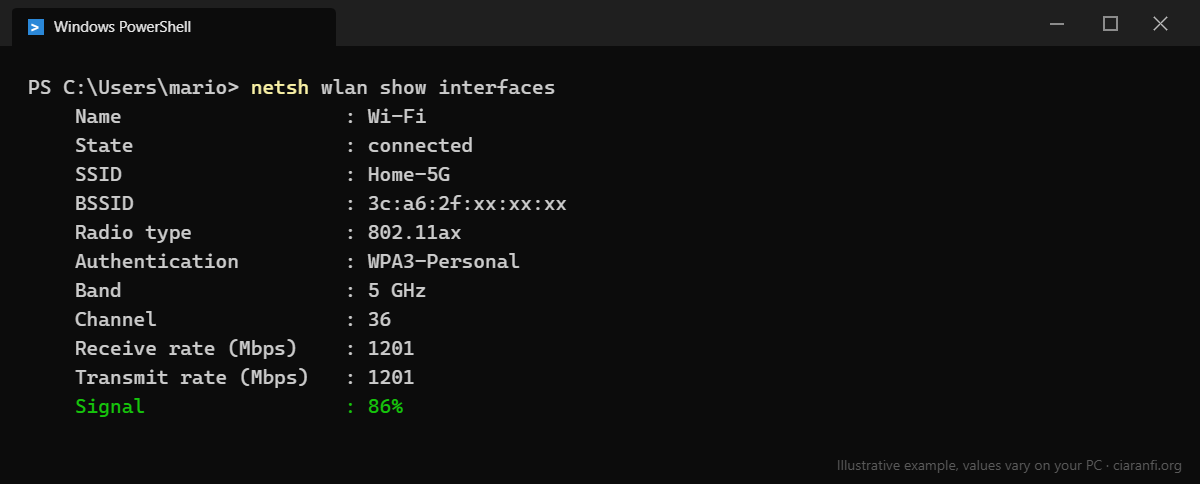
| Field | What it means |
|---|---|
SSID and BSSID |
The network name and the address of the access point you are connected to. With several access points or extenders, the BSSID tells you which one you are using |
Radio type |
The standard: 802.11n (Wi-Fi 4), 802.11ac (Wi-Fi 5), 802.11ax (Wi-Fi 6/6E), 802.11be (Wi-Fi 7) |
Band and Channel |
2.4 GHz (channels 1–13), 5 GHz (36 and above) or 6 GHz. The Band field appears in recent Windows versions; otherwise infer it from the channel |
Receive/Transmit rate |
The radio link speed in Mbps: a theoretical maximum, your real Internet speed will be lower |
Signal |
Signal quality as a percentage |
Reading the signal
| Signal | In practice |
|---|---|
| 80–100% | Excellent: if the network is slow, coverage is not the problem |
| 60–80% | Good for browsing and video calls |
| 40–60% | Slowdowns and speed drops are possible |
| Below 40% | Unstable: move closer to the router, relocate the access point or add a mesh system |
These are rough guides: the percentage is an estimate calculated by the network adapter, and noise from nearby networks matters a lot too.
Step 2: nearby networks and busy channels
netsh wlan show networks mode=bssid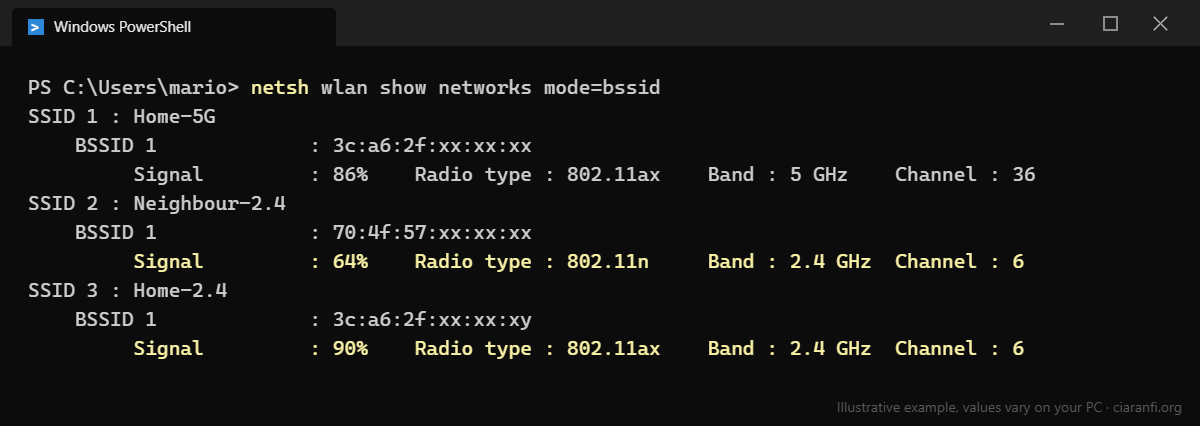
It lists every network the PC can hear, with each access point’s channel and signal. If on 2.4 GHz many neighbouring networks use the same channel as your router, set a less crowded channel on the router (1, 6 or 11, which do not overlap) or connect the PC on 5 GHz. The Wi-Fi channel matters for smart homes too: see Zigbee disconnects and the Wi-Fi channel.
Step 3: the report of recent disconnections
In an administrator window:
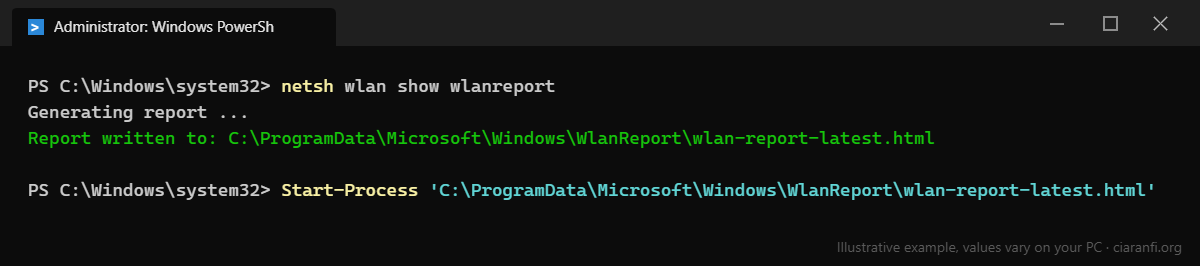
netsh wlan show wlanreportWindows creates an HTML report of recent Wi-Fi sessions, with disconnect reasons, and saves it to:
C:\ProgramData\Microsoft\Windows\WlanReport\wlan-report-latest.htmlOpen it with a double-click or with Start-Process. At the top a chart shows the sessions: interruptions are highlighted and clicking them shows the recorded reason (for example a disconnect requested by the router, a signal too weak or the PC going to sleep). It is the quickest way to tell whether Wi-Fi really “drops” or the PC is just sleeping.
Step 4: what your adapter supports
netsh wlan show driversIt shows the driver’s vendor and version, the supported radio types (for example 802.11ax) and available authentication methods, including WPA3. Useful before changing router: a Wi-Fi 7 router brings no benefit if the PC’s adapter stops at Wi-Fi 5. For the differences between generations see Wi-Fi 7: what changes.
Step 5: saved networks
netsh wlan show profiles
netsh wlan delete profile name="Cafe-Centre"
The second command deletes a saved network you no longer use (a public network, for example), so the PC will not join it on its own. To recover the password of a saved network see how to find a saved Wi-Fi password.
What to do based on the result
| Symptom | Likely cause | What to try |
|---|---|---|
| Low signal, low link speed | Distance or walls | Move the router to a central, high position, add a mesh node |
| High signal but low speed | Interference or 2.4 GHz band | Use 5 GHz, change channel |
| Disconnects in the wlanreport during sleep | Power saving | In the adapter’s properties, turn off “allow the computer to turn off this device to save power” |
| Frequent disconnects with a good signal | Driver or router | Update the adapter driver and the router firmware |
Sources
- Microsoft Learn, netsh wlan commands.
- Microsoft Learn, Advanced troubleshooting wireless network connectivity (baseline commands and the wlanreport).