The classic ping, tracert and nslookup still work, and we covered them in Internet not working: finding where it breaks. PowerShell adds more precise commands: they check whether a port is reachable (not just whether a computer answers ping), show all network information at once and return results you can use in scripts. This is the first guide in the Network and connection series; the basics are in PowerShell for beginners.
Every command in this guide only reads and works in a normal window, unless stated otherwise.
Step 1: is the network adapter connected?
Get-NetAdapter | Select-Object Name, InterfaceDescription, Status, LinkSpeedStatus should be Up for the adapter you use (Wi-Fi or Ethernet). Disconnected means the cable is unplugged or Wi-Fi is not connected; Disabled means the adapter was turned off. LinkSpeed is the speed of the link to the router, not your Internet speed.
Step 2: address, gateway and DNS
Get-NetIPConfiguration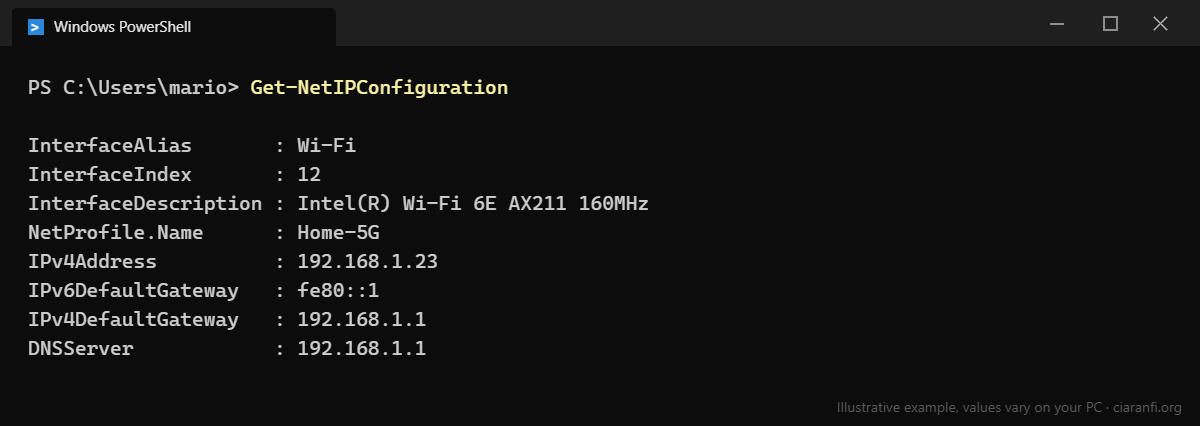
| Field | What to check |
|---|---|
IPv4Address |
Usually 192.168.x.x or 10.x.x.x. If it starts with 169.254, the PC did not get an address from the router (DHCP): the problem is between PC and router |
IPv4DefaultGateway |
The router’s address. If it is missing, the PC does not know how to reach the Internet |
DNSServer |
The servers that translate names into addresses: often the router itself or your provider’s DNS |
Get-NetIPConfiguration -Detailed also shows the network profile (public or private) and connection status.
Step 3: do the router and the Internet respond?
Test-NetConnection (short form tnc) without arguments tries to reach a Microsoft test server. With an address it runs a ping:
Test-NetConnection 192.168.1.1
Test-NetConnection www.ciaranfi.org
Look at PingSucceeded: True to the router but False to the Internet points to the line or the router; False to the router too points to the home network. Some servers deliberately ignore ping: for them the next step is what matters.
The route: -TraceRoute
Test-NetConnection www.ciaranfi.org -TraceRouteIt lists the routers along the way, like tracert. If the list stops right after your router, the fault is probably at your provider.
Step 4: does the service respond? Ports
A website answers on port 443 (HTTPS), outgoing mail often on 587, Remote Desktop on 3389. Ping tells you nothing about these; -Port does:
Test-NetConnection www.ciaranfi.org -Port 443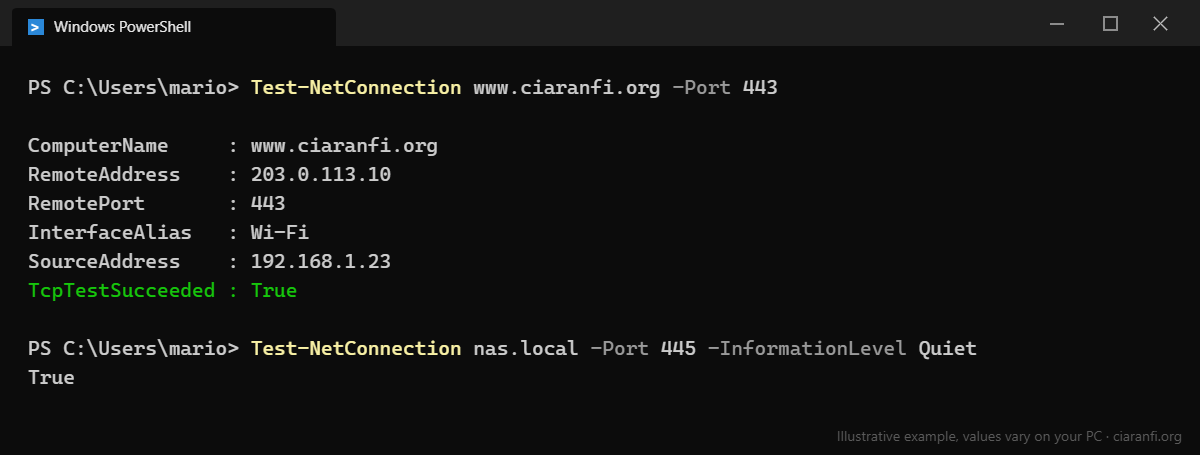
TcpTestSucceeded : True means the connection to the port worked. False, while ping works, means the port is closed or blocked by a firewall (on the server, the router or your PC).
For common ports there is a shortcut: -CommonTCPPort HTTP, RDP, SMB or WINRM. In scripts, -InformationLevel Quiet is handy because it returns just True or False:
if (Test-NetConnection nas.local -Port 445 -InformationLevel Quiet) { "NAS reachable" } else { "NAS not reachable" }Step 5: does DNS work?
Resolve-DnsName www.ciaranfi.orgIf the name does not resolve but Test-NetConnection to a numeric address works, the problem is DNS. To tell whether it is your router’s or provider’s DNS, ask another server for the same name:
Resolve-DnsName www.ciaranfi.org -Server 1.1.1.1
Resolve-DnsName www.ciaranfi.org -Server 9.9.9.9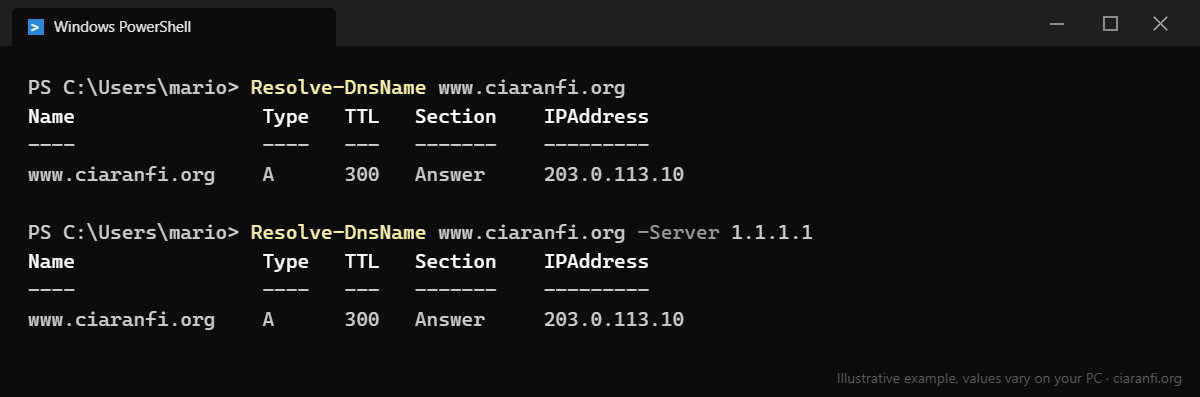
Other useful record types: -Type AAAA (IPv6 address), -Type MX (a domain’s mail servers), -Type TXT (for example SPF records). If you run a home DNS filter and a site is blocked, you will see the address 0.0.0.0 here.
Windows caches DNS answers for a while. After changing DNS or fixing a problem, clear the cache with Clear-DnsClientCache (as administrator) or ipconfig /flushdns.
The whole procedure at a glance
| Step | Command | If it fails, the problem is… |
|---|---|---|
| 1 | Get-NetAdapter |
Cable, Wi-Fi or disabled adapter |
| 2 | Get-NetIPConfiguration |
Between PC and router (169.254 address, missing gateway) |
| 3 | Test-NetConnection <router> then a website |
Home network, then line or provider |
| 4 | Test-NetConnection <site> -Port 443 |
The service or a firewall |
| 5 | Resolve-DnsName <site> with and without -Server |
DNS |
A quick check to save as a script
$gw = (Get-NetIPConfiguration | Where-Object IPv4DefaultGateway | Select-Object -First 1).IPv4DefaultGateway.NextHop
"Gateway $gw : " + (Test-NetConnection $gw -InformationLevel Quiet)
"DNS        : " + [bool](Resolve-DnsName www.microsoft.com -ErrorAction SilentlyContinue)
"HTTPS      : " + (Test-NetConnection www.microsoft.com -Port 443 -InformationLevel Quiet)
Three True lines mean the home network, DNS and web access all work. To measure the line’s speed and stability see measuring your connection.
Sources
- Microsoft Learn, Test-NetConnection and Get-NetIPConfiguration.
- Microsoft Learn, Resolve-DnsName and Clear-DnsClientCache.
- Microsoft Learn, Get-NetAdapter.