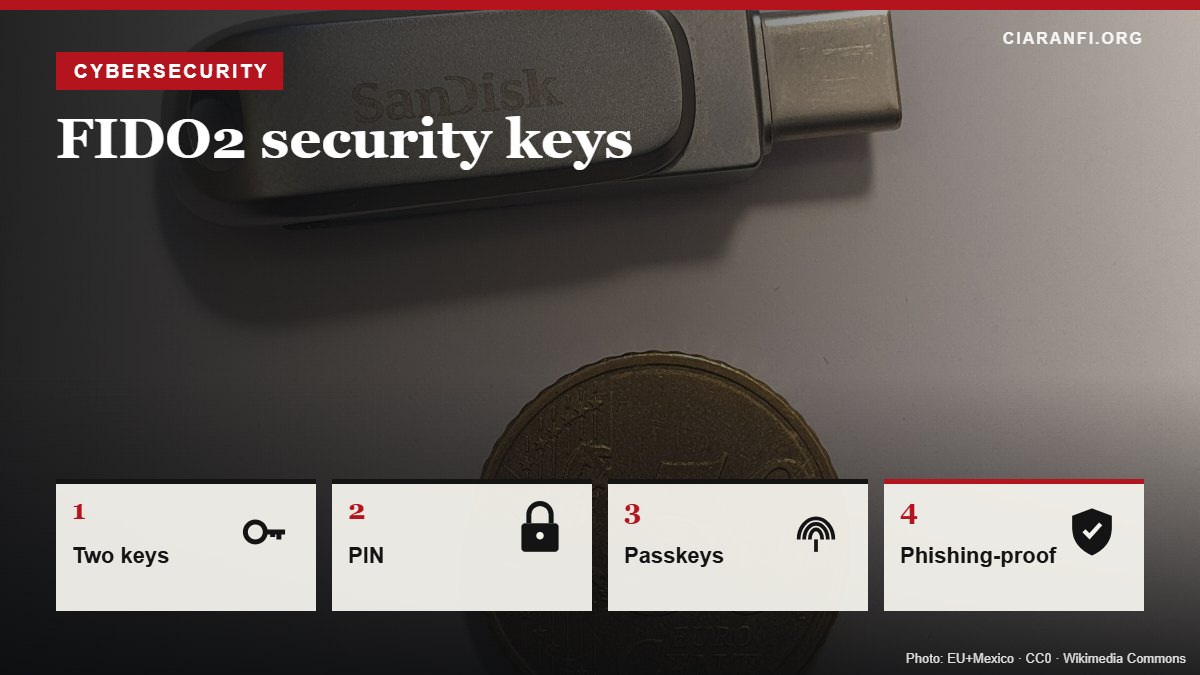
SMS codes and authenticator apps protect well against automated attacks, but a well-made phishing site can get the code from you and use it in real time. A FIDO2 security key, the small device you plug in via USB or tap against your phone, closes that door too. In the guide on protecting your accounts we list it as the strongest method: here is how to choose and set one up.
How it works, and why it resists phishing
FIDO2 combines two standards: WebAuthn (how the site asks the browser for authentication) and CTAP2 (how the browser talks to the key). When you register the key on a site, it creates a cryptographic key pair tied to that site’s exact domain. At login the site sends a challenge, the key signs it and the browser tells the key the page’s real domain. On a fake page the domain is different: the key finds no credential to use and signs nothing. There is no code to steal and no bad habit that can get around it.
Two ways to use it
| Use | How it works | Example |
|---|---|---|
| Second factor | Enter your password, then touch the key | Accounts that don’t support passkeys yet |
| Passkey on the key | Insert the key, enter the key’s PIN and touch: no password | Google, Microsoft, password managers, many recent services |
Passkeys stored on the key (“discoverable” credentials) take up space: each model holds a limited number, often from a few dozen to around a hundred. Accounts where you use it only as a second factor take no slots.
Which key to buy
| Feature | What to choose |
|---|---|
| Connector | USB-C if your PC and phone are recent; USB-A for older computers; some models have both |
| NFC | Useful for tapping it against your phone, no cable needed |
| Certification | The “FIDO Certified” logo and FIDO2/WebAuthn support, not just the old U2F |
| Passkey capacity | Check how many discoverable credentials it can hold |
| Manufacturer | Known brands sold through official channels: a key of doubtful origin is a risk |
Prices range from a few tens of euros for basic models to more for those with NFC, a fingerprint reader or extras such as OTP and smart card functions.
The two-key rule
A key can be lost or broken. Always buy two keys, register both on every account and keep the second somewhere safe, away from the first. Apple, for example, requires at least two keys to enable them on an Apple Account. Also keep each account’s recovery codes, printed or in your password manager.
First setup
- Set the key’s PIN: on Windows in Settings > Accounts > Sign-in options > Security key; on Mac and Linux with the manufacturer’s app or in Chrome under Settings > Privacy and security > Security > Manage security keys. The PIN protects the key if it is stolen: after a number of wrong attempts it locks.
- Update your browser and operating system.
- Register the keys on your accounts, starting with the critical ones.
Where to enable it first
| Account | Where |
|---|---|
| Google Account > Security > Passkeys and security keys | |
| Microsoft | Microsoft account > Security > Advanced sign-in options > add a security key or passkey |
| Apple | Settings > your name > Sign-In & Security > Security Keys (two keys needed) |
| Password manager | Account security settings: the key protects the vault holding all your other passwords |
| Domain email, registrar panel, hosting | If they support WebAuthn: these are the accounts your website depends on |
After enabling it, review the account’s recovery methods: if SMS remains as a fallback, a scammer can try that route. Where possible, leave only keys, passkeys and recovery codes.
Frequently asked questions
- Does it work on a phone? Yes, with NFC or with a USB-C key plugged straight in.
- If I lose it, can the finder get into my accounts? No: they don’t know your passwords and, for passkeys, the PIN is also required.
- Can I use it at work? Many companies use it with Microsoft Entra ID or Google Workspace: ask your administrator, who can also make it mandatory.
- What about passkeys on my phone? They are convenient and sync across devices; a physical key is useful for the most important accounts and when you don’t want to depend on a vendor’s cloud.
Sources
- FIDO Alliance, FIDO2: WebAuthn and CTAP.
- W3C, Web Authentication (WebAuthn).
- Apple, About security keys for Apple Account.